Quick takeaway

There are many reference managers, but I switched to Zotero a few years ago. One big plus is that Zotero is open-source.
After upgrading to Zotero 7, managing papers became smoother—especially for capturing citations from the web and organizing PDFs (storage + renaming). This article focuses on setting up where PDFs are stored, how to auto-organize them into subfolders, how to auto-rename files, and how to turn annotations into notes.
Key point: Zotero 7 no longer supports ZotFile, so the practical workflow is ZotMoov (folder organization) + Zotero’s built-in File Renaming .
What you’ll learn
- Store PDFs in OneDrive (or another cloud folder)
- Organize PDFs into subfolders (ZotMoov)
- Auto-rename PDF filenames (Zotero built-in)
- Export annotations into notes
- Remove quotation marks in saved notes
Recommended setup (my workflow)
- PDF storage: OneDrive (set “Linked Attachment Base Directory” under Preferences)
- Folder structure: ZotMoov subfolders by journal (e.g., {%w} )
- Renaming format: LastNameInitial_Year_Title (e.g., TakahashiN_2024_Title... )
Note: your OneDrive path will differ by OS and organization name. Replace the example paths with your own environment.
Download Zotero
You can download Zotero from the official website . You can also install the browser connector (e.g., Chrome Connector) from there. The beta builds are available here.
Environment and versions
Mac: Sequoia 15.2, Zotero: 7.0
Windows: Windows 10, Zotero: 7.0
Importing references from websites
You can import citation info from PubMed (and many publisher sites) with one click. Zotero can also download the PDF and attach it automatically. On a PubMed article page, a publisher page, or even a page after downloading a PDF, click the note icon next to the browser address bar (in the screenshot: red arrow; on Windows it may show as a “Z” icon).
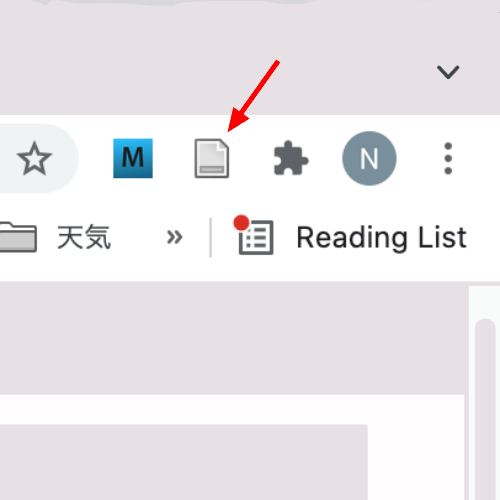
In my experience, importing from the publisher page is the most reliable. From PubMed, you may sometimes get a “PubMed Entry” attachment but no PDF. Importing from a “PDF download” page can also be slightly unstable for metadata.
This feature requires the Zotero Connector plugin for your browser (Firefox, Chrome, Safari, Edge, etc.).
Adding PDFs you already have
If you already have a PDF, drag and drop it into Zotero. Zotero will attempt to extract metadata and create a reference entry automatically. When you drop a PDF, make sure the cursor is between items; if you drop it onto an existing item, you may accidentally attach many PDFs to one record. Some older PDFs may not be recognized correctly—then you can enter metadata manually, or import metadata from PubMed first and attach the PDF afterward. To attach a PDF to an existing reference:
In Zotero, select the reference item
  Right click / Add Attachment / Add File
PDF storage location and renaming
Set the PDF storage location
By default, Zotero stores files in a local data directory (e.g., /Users/.../Zotero on Mac) and can sync attachments via Zotero’s own cloud. However, Zotero’s free cloud storage is limited (300MB), which is not enough for a large PDF library.
You can keep your Zotero library database in the default location and store only PDFs elsewhere. You can point linked attachments to a third-party cloud folder (e.g., Dropbox), which can also be convenient if you use Zotero on iPad.
My workplace standard is OneDrive, so I store PDFs in a OneDrive folder. Since OneDrive also keeps a local offline folder on my laptop, I point Zotero to that local OneDrive path. You can change the red parts in the following settings. I created a folder named “Zotero” inside OneDrive and store PDFs there.
Preference/Advanced/Files and Folders
    Linked Attachment Base Directory
        Base Directory: (Mac)
        /Users/***/Library/CloudStorage/OneDrive-***/Zotero
        Base Directory: (Windows)
        C:\Users/***\OneDrive-***\Zotero
    Data Directory Location
        Default (/users/***/zotero)
I previously used a folder under Documents and synced Documents across machines. In that case, the settings look like this:
Preference/Advanced/Files and Folders
    Linked Attachment Base Directory
        Base Directory:
        /users/***/documents/zotero
    Data Directory Location
        Default (/users/zotero)
Organizing PDFs into subfolders
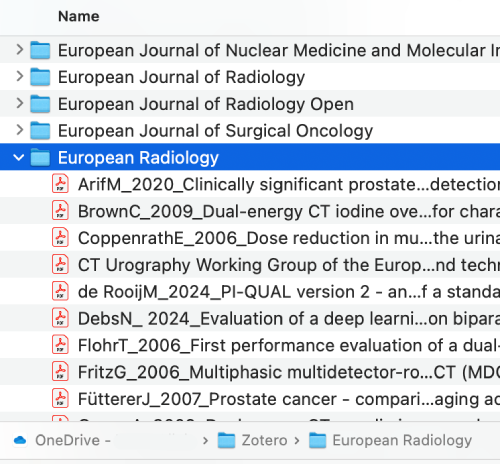
You can automatically move/copy PDFs into subfolders based on metadata (e.g., journal name, year). In Zotero 7, this kind of subfolder organization is handled using the ZotMoov plugin (see screenshot).
If you don’t need subfolders (i.e., you keep all PDFs in a single folder), you don’t need ZotMoov. In that case, skip to How to rename PDFs .
In Zotero 6, ZotFile handled both renaming and moving files, but ZotFile no longer works in Zotero 7. For Zotero 6 settings, see this article .
Download the ZotMoov plugin from the ZotMoov GitHub page . In the README, click the download link and download the ZotMoov.xxx.xpi file. Then install it in Zotero:
Tools / Plugins
  Click the settings icon (top right) → Install Add-on From File
  Select the downloaded file (ZotMoov.xxx.xpi)
I store PDFs in folders grouped by journal name. My ZotMoov settings:
Preference/ZotMoov
  Directory to Move/Copy Files to
    Users/***/Library/CloudStorage/OneDrive-***/Zotero
    File Behaviour: move
    x Automatically move file to subdirectory
      subdirectory string: {%w}
%w is the variable for journal name. There are many others (e.g., %y for year). For details, see the format link in ZotMoov settings or this reference .
How to rename PDFs
In Zotero 7, file renaming is done by Zotero itself. The default filename format looks like:
Takahashi et al. - 2024 - This is title of the journal.pdf
I don’t need “et al.”, so I replace given names with initials. I also switch hyphens to underscores and remove extra spaces.
Preferences/General/File Renaming
  check automatically rename locally added files
  click Customize Filename Format
  {{  authors
      max="1"
      name="family-given"
      initialize="given"
      initialize-with=""
      name-part-separator=""
      suffix="_"}}
  {{  year suffix="_" }}
  {{  title truncate="100" }}
With that, the filename becomes:
TakahashiN_2024_This is title of the journal.pdf
The idea is: inside each {{ }} block, you specify the field you want to include (e.g., authors) and then options that control formatting. In the example above:
- authors: use authors.
- max="1": keep only one author.
- name="family-given": show family name then given name.
- initialize="given": convert given name to an initial.
- initialize-with="": no punctuation after the initial (default is a period).
- name-part-separator="": nothing between family and given (default is a space).
- suffix="_": add an underscore after the author block.
I inserted line breaks in the example for readability, but in practice, write the blocks in a single line without spaces ({{authors}}{{year}}{{title}}), otherwise spaces will appear in the filename.
The preview under the format editor updates immediately, which makes it easy to confirm your changes.
There are many other options. See the format link in Zotero settings or this page for details.
Renaming and moving happens automatically when you add PDFs, but if you edit metadata later, you can rename/move manually:
In Zotero, select the reference item
  Right click / Rename File from Parent Metadata
  or
  Right click / ZotMoov: Move File to Directory
For Zotero 6 settings, see this article .
Exporting PDF annotations into notes
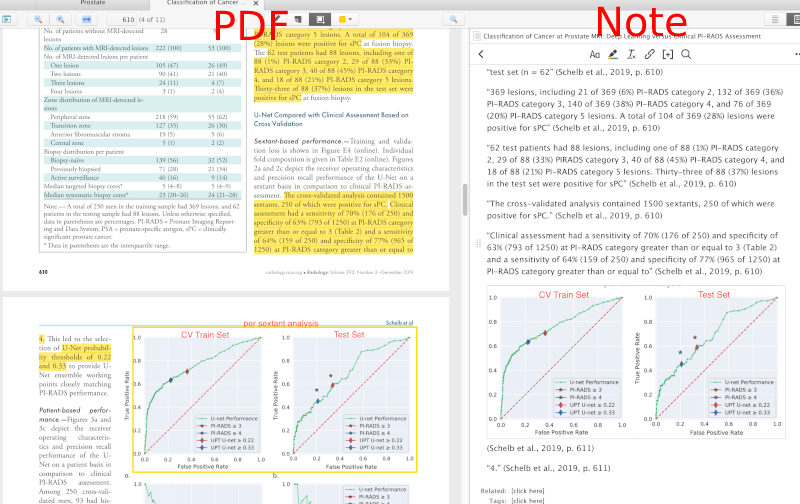
Zotero includes a built-in PDF reader. You can highlight text, underline, add sticky-note comments, and draw colored boxes around regions (e.g., figures or tables). Advantages of using the built-in reader:
- You can read and annotate PDFs directly inside Zotero.
- Annotations are stored in the Zotero database separately from the PDF. If you open the PDF in an external viewer, it remains a clean copy. You can also export an “embedded annotations” version if needed.
- You can copy annotations into a Zotero note. You can also batch-copy all annotations after finishing a paper.
- With Zotero iOS, annotations can sync across devices.
Point (a) and (b) can be both a pro and a con, but when sending a PDF to someone else, a clean copy is often preferable.
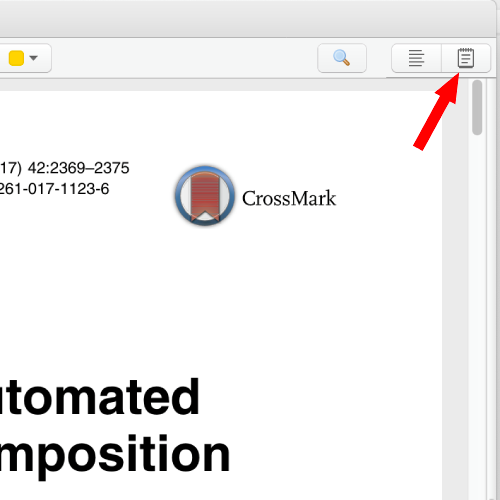
(c) is especially helpful. It can capture not only highlighted text, but also sticky-note comments and region selections (figures/tables), so you can create a visual summary. The note is saved as a child item under the reference. To export annotations into a note:
Click the note icon at the top right of the right-side panel (red arrow in the screenshot)
  Item Note + / Add Item Note from Annotations
Remove quotation marks when saving notes
Saved notes are often wrapped in quotation marks (“ ”) for each highlight block. Here is how to remove them (Zotero 7):
Preference / Advanced / Config Editor
  Search: extensions.zotero.annotations.noteTemplates.highlight
In the editor, add the red part below:
<p>{{highlight quotes='false'}} {{citation}} {{comment}}</p>
Each block may also include an annotation citation (e.g., “Cai et al 2022 p2”). You can hide that by clicking “...” in the upper right of the note and selecting “Hide annotation citation”.
Organizing items with collections and tags
You can manage items using folders (collections). Collections behave like smart collections in the sense that one item can belong to multiple collections. You can also use tags. A good approach is to use collections for major categories and tags for more granular labels.
In Zotero 6, I used the Zutilo plugin for batch tag editing, but it no longer works in Zotero 7. In Zotero 7, you can do some batch tag edits using the tag pane in the lower left. Select items and drag-and-drop onto a tag to apply it.
For managing my own papers, I use a “My Articles” collection. One practical tip: papers that are “in press” can be easy to forget to update after publication. If you keep an “My Articles in press” collection, you can later update PDFs in one batch after they’re officially published.
Storing non-paper documents in Zotero
You can also store documents other than papers in Zotero—for example, a summary document that synthesizes multiple papers—at the same level as other library items.
Citing references in Microsoft Word
To cite references in Word, you need “Zotero Word Integration for Mac,” but it is typically installed automatically with Zotero.
When you open Word, you should see a “Zotero” tab. Place the cursor where you want a citation, click “Add/Edit Citation,” then search and select a reference. To add multiple references in the same spot, keep selecting additional items. To edit an existing citation, click the citation number and use “Add/Edit Citation” again. “Add/Edit Bibliography” inserts the reference list at the end of the document.
Compared with EndNote (where citations often show keys/authors until final formatting), Zotero shows formatted citations immediately. In many styles, in-text citations become numbers, which makes it harder to see which papers are being cited:
... citation example one (1, 2).
A workaround is to temporarily switch the style to something like “Cite Them Right 11th edition,” so citations display authors and year:
... citation example two (Ikeda et al., 2006; Tan et al., 2012).
You can change styles in “Document Preferences,” or sometimes during citation insertion.
Creating bibliographies for HTML and other formats
Outside of manuscripts, exporting a bibliography as HTML is convenient—for example, for listing publications on a website. I use this on this page .
Select the papers → Right click → "Create Bibliography from Items"
Export as HTML
Because it’s saved as HTML, you can copy and paste the part you need into your webpage.
Plugins
Zotero has many plugins . I use the browser connector (e.g., Chrome Connector) and Zotero Word Integration for Mac.
I also use Better BibTeX and VS Code Citation Picker for Zotero when writing in Markdown in VS Code.
You can check installed plugins in Tools / Add-ons.
Using Zotero with Obsidian
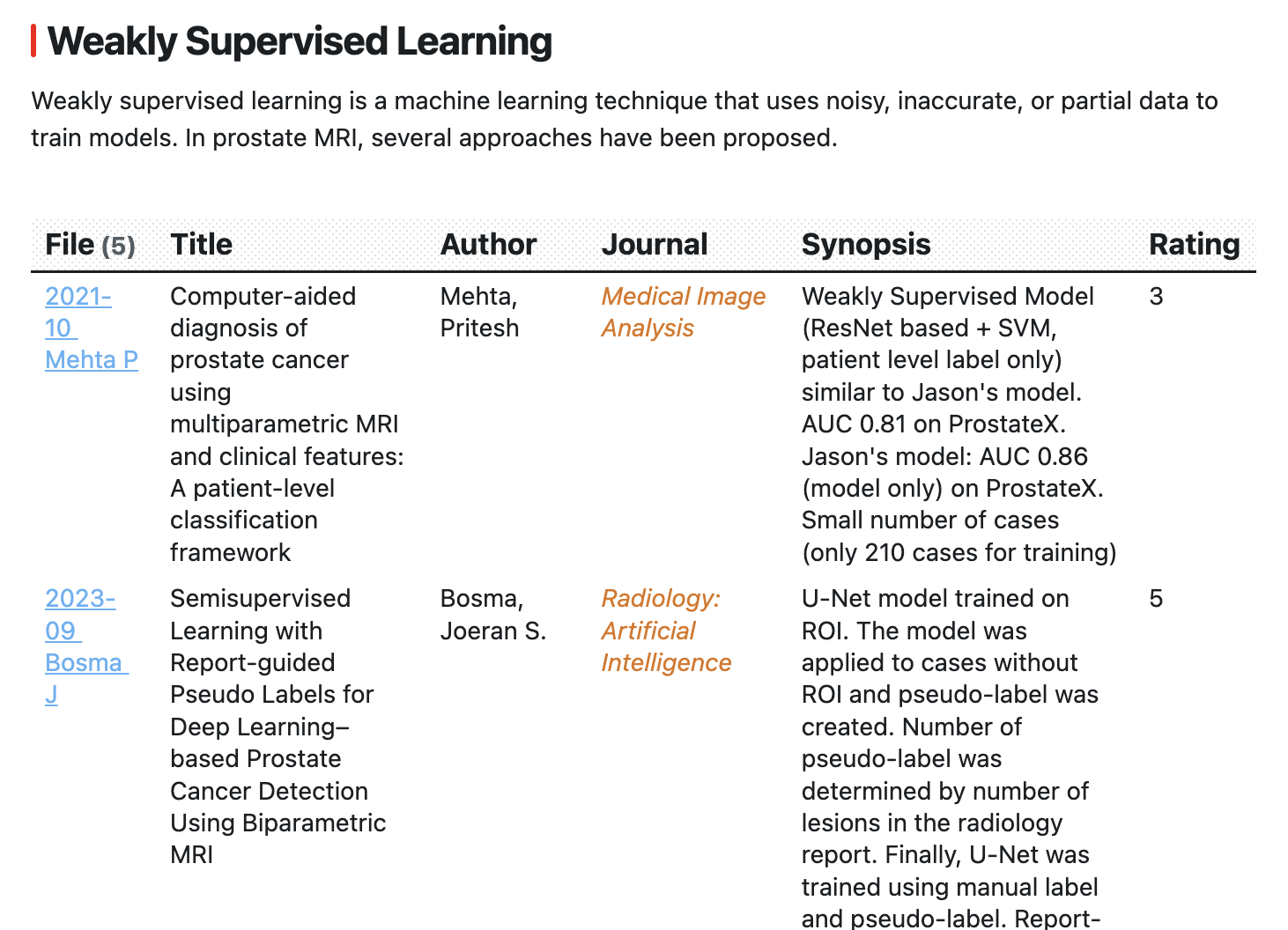
Combining Zotero with Obsidian makes literature organization even more powerful. See my Obsidian article .
In short, you can export Zotero notes into Obsidian and build structured summaries across multiple papers. Zotero is great for paper-by-paper organization, but it’s harder to synthesize across many papers. Obsidian complements that gap.
Final thoughts
I switched to Zotero because I needed to read and organize a set of papers. I didn’t fully master EndNote, so a strict comparison is hard, but Zotero’s “capture from web → build library → download PDF → rename automatically” workflow takes only a few clicks. The best feature for me is the ability to batch-copy PDF annotations into a note. I’m glad I switched.
Zotero 7 stable was released in 2024/8. Since I started using Zotero 7 recently, I updated the PDF renaming section accordingly.
Last updated: March 16, 2025