Introduction
A Map of Contents (MOC) is a note that works like a table of contents, organizing links to related notes by purpose or topic. Unlike a physical folder hierarchy, it can provide multiple entry points to the same note from different perspectives. In this article, I use an MOC as the home page for my entire Vault.
I used folders to organize my notes in Obsidian for a long time. Folders are intuitive, their hierarchy can be collapsed, and the physical location of each file is clear. As my Vault grew, however, I became increasingly aware of one limitation: a note can physically live in only one place. For example, I might have several project-related notes in a Model Development folder.
Model Development/
 ├─ IRB.md
 └─ Reader Study.md
I also have a Deep Learning folder containing notes about deep-learning model architectures.
Deep Learning/
 ├─ U-Net.md
 ├─ VGG.md
 └─ EfficientNet.md
A note such as U-Net.md naturally belongs in the Deep Learning folder, but I may also use it in a Model Development project and want to access it from there as well.
Another problem arises when I want to collect notes scattered across multiple folders using a different organizing dimension. For example, notes related to a particular grant or research topic may be distributed across several projects, while I also want to view them together by grant or topic.
Folders alone make it difficult to organize one note from multiple perspectives or collect related notes across different folders. I therefore stopped using Folder Explorer as my primary entry point and moved to navigation based on MOC + folders + properties (categories) + tags + Folder Notes + Bases
Separate the Roles of Folders, Categories, and Tags
I separate the roles of folders, categories, and tags as follows.
Folder = Where it lives
Category = What kind of note it is
Tags = What it relates to
For example,
Deep Learning/U-Net.md
can have the following properties.
---
category: KnowledgeNote
tags:
  - ML/DL/Segmentation
---
Physically, it lives in
Deep Learning
, but properties and tags let me search for and collect the note along multiple dimensions.
I keep the category property limited to six values that describe what kind of note it is.
ProjectNote       # Notes related to carrying out a project
LiteratureNote    # Notes about individual papers
LiteratureReview  # Notes synthesizing multiple papers by topic
KnowledgeNote     # Knowledge I have understood and organized
Resource          # Information I reference or reuse while working
FolderNote        # A note that serves as the entry point to a folder
I create
LiteratureNote
by importing material from Zotero into Obsidian. For details on how I create literature notes, see
Obsidian + Zotero
.
Tags, on the other hand, represent multiple semantic relationships.
Outcome/TumorDetection
ML/DL/Segmentation
MRI/ImageQuality
This separation provides the foundation for the smart-folder-like structure built with Bases later in the article.
Map of Contents (MOC)
I use a simple Markdown list for my MOC. I also tried plugins such as Simple MindMap and Canvas, but in day-to-day use I found a Markdown list easier to navigate. Each item links to a Folder Note or another note. In a nested folder structure, the Folder Note itself can also function as a lower-level MOC.
The MOC resembles the folder structure of the Vault, but it does not have to match it。I can arrange items in whatever order is most useful, Physically, it lives in add access paths to smart folders that do not physically exist。
# Prostate
- Projects
  - [[_Tumor Detection|Tumor Detection]]
    - [[_Model Development|Model Development]]
    - [[_Reader Study|Reader Study]]
    - [[_Model Deployment|Model Deployment]]
    - [[_Model Monitoring|Model Monitoring]]
  - [[_Outcome Prediction|Outcome Prediction]]
    - [[_Staging|Staging]]
    - [[_Recurrence|Recurrence]]
- [[_Literature Review|Literature Review]]
- [[_Practice Update|Practice Update]]

# Grants
- [[_Grant1|Grant1]]  # Smart folder
- [[_Grant2|Grant2]]  # Smart folder

# Knowledge Notes
- [[_Knowledge Notes|Knowledge Notes]]
  - [[_Deep Learning|Deep Learning]]

# Resources
- [[_Resources|Resources]]

# Literature
- [[_Literature|Literature]]
- [[Our Publications]]  # A file in the Resources folder

# To Do List
- [] submit monthly progress report
- [] submit IRB application for project A
Drawbacks of Using Simple MindMap or Canvas as an MOC
Plugins such as Simple MindMap and Canvas can also be used as an MOC. They are visually intuitive, but I ran into several problems when trying to use them for navigation across the entire Vault.
- As the map grows, frequent panning and zooming become necessary
- Moving to a distant node requires more mouse navigation
- Canvas does not let me collapse large branches as easily as Folder Explorer
- File cards behave more like embedded notes than navigation buttons
- Simple MindMap supports collapsing branches, but navigating a large two-dimensional map is still necessary
For an MOC, I found that reaching the note I want quickly matters more than visual appearance.
Advantages of a Markdown list include:
- Navigation is mostly just vertical scrolling
- It is easy to scan where things are
- It uses standard Obsidian links directly
- Because it is Markdown, dependence on plugins is minimal
Use the Folder Notes Plugin to Turn Folders into Dashboards
The plugin I found most useful when introducing the MOC was Folder Notes. It can create a Folder Note in each folder with a single click, using a filename such as _{{foldername}}.md . The naming format is configurable; I prefix the filename with an underscore so I can immediately recognize it as a Folder Note.
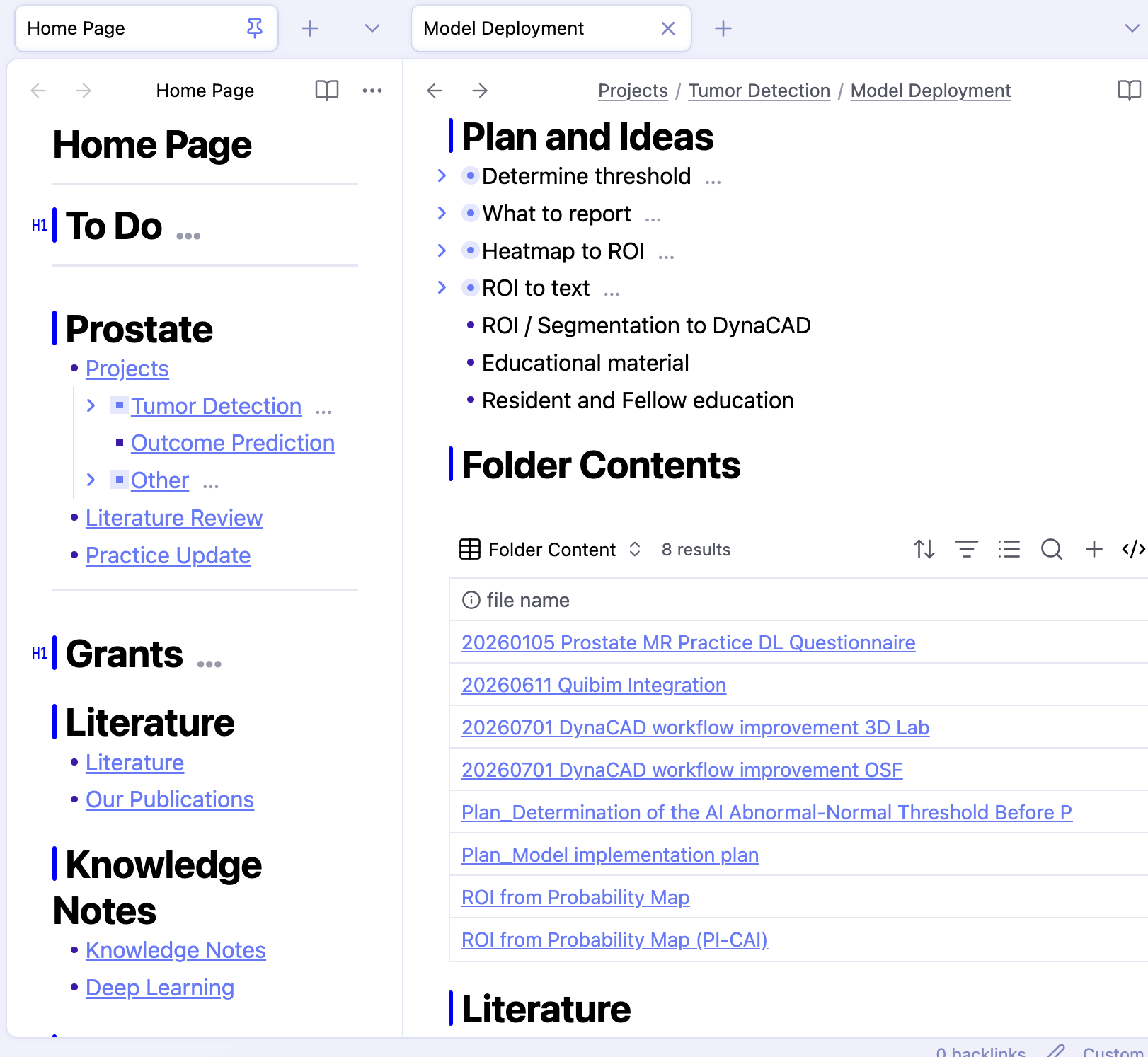
In the MOC, clicking Model Development opens the Folder Note ( _Model Development.md ). In addition to listing notes and folders below it, I use the Folder Note as a dashboard for that folder.
My Folder Note template looks roughly like this.
---
category: FolderNote
tags:
---

# Plan and Ideas
# Folder Contents
[Base: files in this folder]
# Literature
[Base: related LiteratureReview notes]
# Knowledge Notes
[Base: related KnowledgeNote notes]
# Resources
[Base: related Resource notes]
Plan and Ideas is where I freely record the current direction of the project, next steps, and important decisions.
For the other sections, Bases automatically displays related files. Folder Contents lists notes physically located in that folder. Literature, Knowledge Notes, Resource use categories and tags to display related notes from across the entire Vault. When a useful tag-based filter is difficult to define, I do not force it and simply add a manual link instead.
The Base for Folder Contents is:
```base
filters:
  and:
    - file.inFolder("Projects/Tumor Detection/Model Development")
    - category != "FolderNote"
```
The Base for Knowledge Notes is:
```base
filters:
  and:
    - category == "KnowledgeNote"
    - file.tags.contains("ML/DL/Segmentation")
```
Use Smart Folders
One major advantage of this system is that I can create smart folders that have no corresponding physical folder. For example, suppose I want to collect grant-related notes spread across several projects. I create an empty link in the MOC,
_Grant1.md
, and use Bases inside that note to collect related notes just as I do in a Folder Note. The page then functions as a smart folder.
In this example, a note can appear regardless of where it physically lives in the Vault, as long as it has the
Grant/Grant1
tag.
```base
filters:
  and:
    - file.tags.contains("Grant/Grant1")
views:
  - type: table
    name: Grant1
    order:
      - file.name
```
Keep the MOC in the Left Pane Like Folder Explorer
The final change that significantly improved the workflow was using a split window. I keep the MOC in the left pane and use the right pane as my working area.
When I used the MOC as a pinned tab, opening links kept creating additional tabs. With a split window, the MOC stays on the left while linked notes open in the working pane on the right, which keeps the workspace much cleaner.
Keep the Folder Structure and Folder Explorer for File Management
I have not eliminated the folder structure or Folder Explorer itself. Moving and renaming files or creating folders is difficult from the MOC, so I still use Folder Explorer whenever I need to manipulate files physically. At the same time, this change has allowed me to simplify the folder structure. For example, after defining KnowledgeNote as a clear category, I was able to consolidate KnowledgeNote files that had previously been scattered across several locations into a single folder.
Conclusion
Moving to an MOC did not require a major rebuild of my existing folder structure. A simple Markdown list plus the Folder Notes plugin gives me navigation that feels similar to Folder Explorer while also turning each folder into a dashboard. By combining properties, tags, and Bases, I can also create smart folders that exist independently of the physical folder structure. For me, the biggest advantage is preserving the convenience of folder-based organization while adding multiple ways to access the same information.
Related Obsidian Articles
For more on literature management and creating literature notes with Obsidian and Zotero, see the following articles.
Last Updated: August 23, 2026