Introduction

Zotero is excellent for collecting and reading papers, but organizing information across multiple papers is less straightforward. I therefore import Zotero notes (annotations) into Obsidian and use Dataview to display papers in tables filtered by tags and year so that research trends and relationships among papers are easier to organize.
This is the legacy version
This article describes my previous Zotero 8 + Zotero Integration workflow. I now use Zotero 10 + ZotLit. For the current setup, see this article for details.
TL;DR (Workflow)
- Import papers into Zotero (including PDFs)
- Annotate PDFs and create a Zotero note
- Generate literature notes in Obsidian with Zotero Integration
- Use Dataview to display tag-filtered tables inside review notes
Contents
- What is Obsidian?
- Benefits of connecting Zotero and Obsidian
- Important Zotero settings (notes/tags)
- Prepare Obsidian (folders/plugins)
- Zotero Integration configuration (including template)
- Display literature tables with Dataview
Recommended setup (minimum)
- Zotero: Install Better BibTeX (for citation keys)
- Obsidian: Install Zotero Integration and Dataview as Community Plugins
- Workflow: Import Zotero notes first, then add your own Synopsis in Obsidian
What is Obsidian?
Obsidian is software for managing notes as Markdown files. Unlike a basic Markdown editor, it lets you link notes to one another and organize related knowledge.
Unlike many note applications, Obsidian can store data locally. Because notes are written in the widely supported Markdown format, they can also be opened with ordinary text editors.
Organizing literature by connecting Zotero and Obsidian
I use Zotero to manage references and export Zotero notes into Obsidian, where they form a literature database for organizing information across papers. Zotero is excellent for managing individual references, while Obsidian complements it by making cross-paper organization easier.
Zotero/Obsidian workflow
-
In Zotero
- Import the paper PDF from the web.
- Annotate the PDF.
- Create a Zotero note.
- Add tags.
-
In Obsidian
- Import the reference metadata and create a literature note.
- Edit the literature note as needed; for example, add a two- or three-line summary for table display.
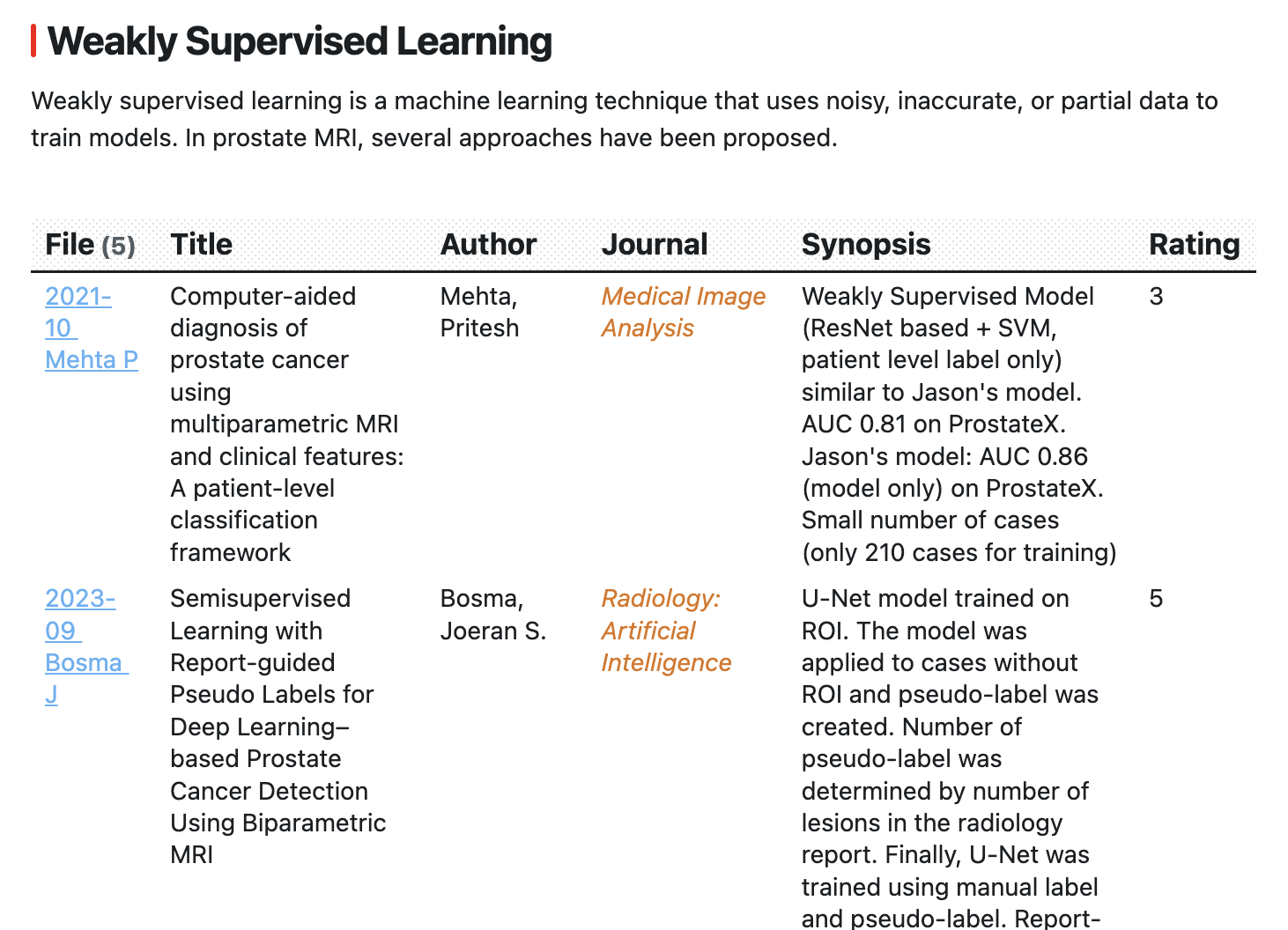
- Filter literature notes and display them in a table.
The screenshot shows literature notes filtered by the tags "ProstateCancer", "MRI", "DL", and "WeaklySupervisedLearning", displayed in a table and sorted by publication year and month. This makes it easier to review research trends and relationships among papers. The table is embedded in a Markdown note, so I can write my own notes before and after it. Each row links to the corresponding literature note. The displayed fields are customizable; for example, Synopsis and Rating reflect information that I add to each literature note.
Zotero setup
For Zotero installation, configuration, plugins, PDF annotation, and creating notes, see this article for details. Better BibTeX is required on the Zotero side for this workflow.
Here I cover only the settings particularly important for exporting and saving notes.
Removing quotation marks when saving notes
Saved notes surround each highlight with quotation marks. To remove them:
Preference/Advanced/Config Editor
Search for extensions.zotero.annotations.noteTemplates.highlight.
Edit the setting and add the highlighted option as shown below.
<p>{{highlight quotes='false'}} {{citation}} {{comment}}</p>
Each annotation also includes a citation such as “Cai et al. 2022 p2.” You can hide these by opening the note menu and selecting “hide annotation citation.”
Managing tags
In this older workflow, I avoided spaces in tags used in Obsidian. Replace spaces with underscores or use CamelCase (for example, Prostate_Cancer or ProstateCancer rather than Prostate Cancer). Editing tags from Zotero's tag list applies the change across references.
Downloading Obsidian
Download Obsidian from the website.
My environment and versions
My current environment is:
- Mac: Sequoia 15.2, Obsidian: 1.8, Zotero: 7.0
- Windows: Windows 10, Obsidian: 1.8, Zotero: 7.0
Create an Obsidian vault and prepare folders like the following:
Vault
  ├── Project 1
  ├── Literature
  │         └── Inbox      (literature notes)
  ├── Templates            (templates)
  │         └── Scripts    (scripts for attaching images)
  └── Attachments          (images)
Obsidian setup and plugin installation
Open Obsidian Settings from the gear icon and enable Community Plugins.
Search Browse under Community Plugins and install the following plugins:
- Zotero Integration
- Dataview
After installation, configure each plugin from Obsidian Settings.
Zotero Integration setup
Configure Zotero Integration as follows.
Import Format
Name           (name shown in the Command Palette; another name is fine)
  Import note from zotero
Output Path        (output folder and filename pattern)
  Literature/Inbox/{{date | format("YYYY-MM")}} {{creators[0].lastName}} {{creators[0].firstName[0]}}.md
Image Output Path   (image output folder)
  Attachments/{{date | format("YYYY-MM")}} {{creators[0].lastName}} {{creators[0].firstName[0]}}/
Template        (template file)
  Template/Zotero_Template.md
The text below is the template. Save it as Zotero_Template.md in the Templates folder.
---
category: literaturenote
tags:
{% for t in allTags.split(",") -%}
  - {{ t | trim | replace('#','') }}
{% endfor -%}
citekey: {{citekey}}
rating:
---
*{{publicationTitle}}*
{{title}}
# Summary

> [!My note]
> Synopsis::
# Methods

# Results
{% set annots = annotations %}
{%- for annot in annots -%}
{% if annot.type == "image" %} ![[{{annot.imageRelativePath}}]]
{% endif %}{% endfor %}

## PDF
{%- for attachment in attachments | filterby("path", "endswith", ".pdf") %}
[{{attachment.title}}](file://{{attachment.path | replace(" ", "%20")}}) {%- endfor -%}.
## Abstract
{%- if abstractNote %}
{{abstractNote}}
{%- endif -%}.
## Metadata
{% for type, creators in creators | groupby("creatorType") -%}
{%- for creator in creators -%}
**{{"First" if loop.first}}{{type | capitalize}}**::
{%- if creator.name %} {{creator.name}}
{%- else %} {{creator.lastName}}, {{creator.firstName}}
{%- endif %}
{% endfor %}
{%- endfor %}
**Title**:: {{title}}
**Year**:: {{date | format("YYYY-MM")}}
**Citekey**:: {{citekey}} {%- if itemType %}
**itemType**:: {{itemType}}{%- endif %}{%- if itemType == "journalArticle" %}
**Journal**:: *{{publicationTitle}}* {%- endif %}{%- if volume %}
**Volume**:: {{volume}} {%- endif %}{%- if issue %}
**Issue**:: {{issue}} {%- endif %}{%- if itemType == "bookSection" %}
**Book**:: {{publicationTitle}} {%- endif %}{%- if publisher %}
**Publisher**:: {{publisher}} {%- endif %}{%- if place %}
**Location**:: {{place}} {%- endif %}{%- if pages %}
**Pages**:: {{pages}} {%- endif %}{%- if DOI %}
**DOI**:: {{DOI}} {%- endif %}{%- if ISBN %}
**ISBN**:: {{ISBN}} {%- endif %}{%- if desktopURI %}
**DesktopURI**:: [zotero-link]({{desktopURI}}){%- endif %}

> **Related**:: {% for relation in relations | selectattr("citekey") %} [[@{{relation.citekey}}]]{% if not loop.last %}, {% endif%} {% endfor %}

> {%- if markdownNotes %}
> {{markdownNotes}}{%- endif -%}.
Dataview setup
No special Dataview settings are required for this example.
Using Zotero Integration
Before importing into Obsidian, prepare a Zotero note. For testing, include an image and a few Zotero tags.
Import the Zotero note as follows:
- Open the Command Palette (Command/Ctrl-P), type Zotero Integration, and select “Import note from zotero.”
- Search by author or other terms and select the reference.
Confirm that the literature note is saved in Obsidian's Literature/Inbox folder.
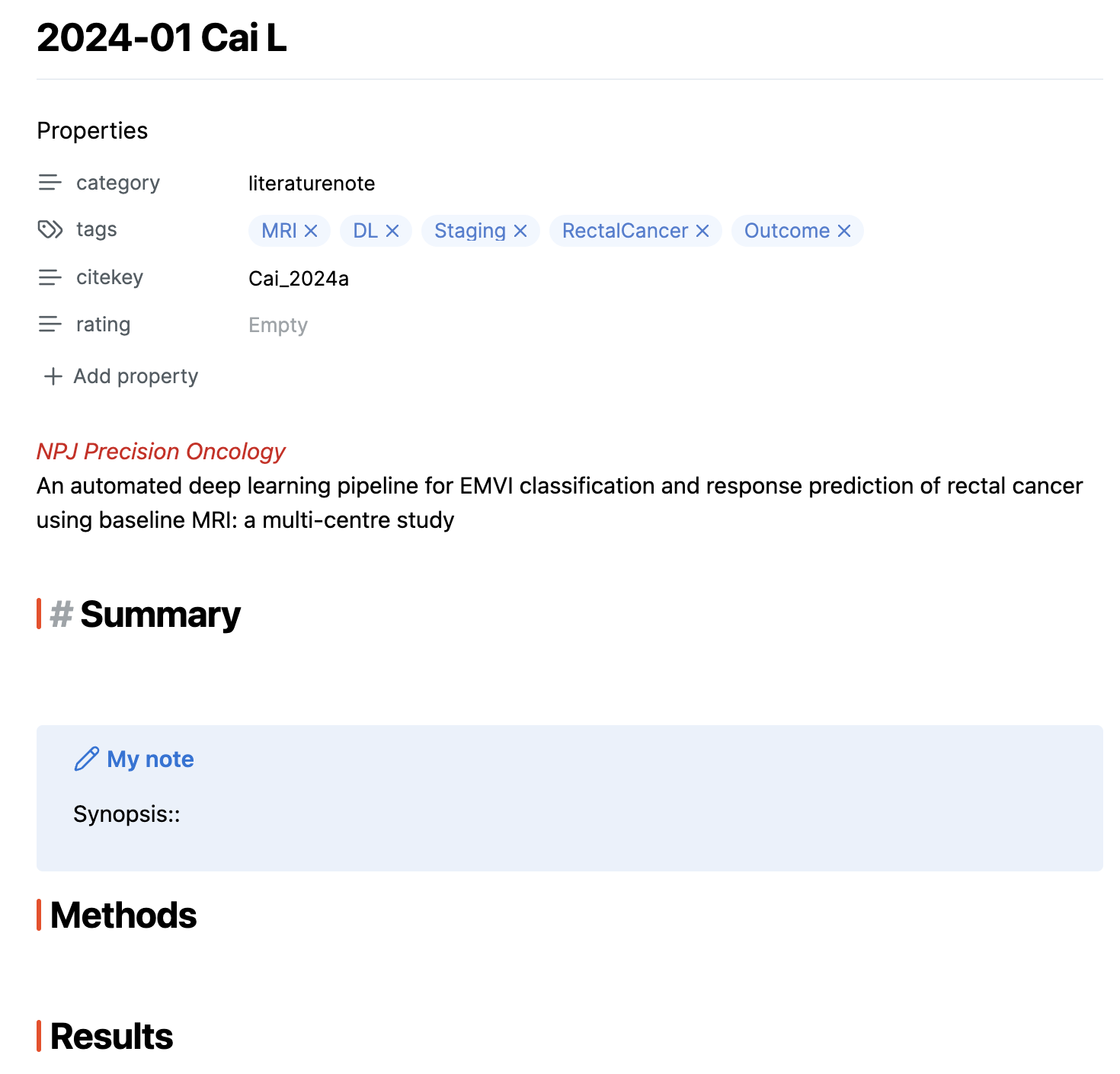
The top of the literature note is frontmatter, where metadata such as tags is stored. Confirm that Zotero tags were imported. I use rating to record the importance of a paper.
Next come the journal name and title.
Summary/Synopsis, Methods, and Results follow. I copy useful material from the imported Zotero note into these sections and reorganize it in readable Markdown. Synopsis is a short summary that is also displayed in Dataview tables.
Image annotations from Zotero are attached in Results and stored under Attachments in a folder corresponding to the note filename.
Next come the PDF link and abstract. The PDF link opens the locally stored PDF, although I generally open PDFs through Zotero instead. The abstract is imported from Zotero.

Bibliographic metadata follows, including authors and journal information. Desktop URI:zotero-link opens the corresponding item in the local Zotero application.
The Zotero note is copied below the metadata. I copy material from it into Methods/Results and edit it into a more readable form.
Imported literature notes are first saved to Literature/Inbox. I used an Inbox because the same paper might be imported again after adding images or annotations in Zotero, and I wanted to avoid overwriting an existing edited note.
My filenames use publication year-month and author name, so two different papers can occasionally receive the same filename. Saving to Inbox first and then moving the note manually to Literature avoids accidental replacement; Obsidian can add a suffix when needed.
Another way to reduce filename collisions is to include the citation key, journal name, or part of the paper title in the filename. Adjust Output Path if you prefer a different naming scheme.
Using Dataview
Create a new Markdown note (for example, literature_review_prostateMR.md in Project1) and paste the following query.
```dataview
TABLE
title as Title,
FirstAuthor as Author,
Journal,
Synopsis,
rating as Rating
From "Literature"
AND #tag1
AND #tag2
SORT file.name ASC
```
Replace "tag1" and "tag2" with the tags you want to use as search criteria.
The Dataview query works as follows:
- TABLE displays the result as a table (LIST is also available).
- title, FirstAuthor, etc. are the fields shown as columns; “as Author” changes the displayed column name for FirstAuthor.
- FROM selects folders or tags; AND, OR, and parentheses can be used.
- WHERE can filter on fields such as frontmatter values, for example WHERE contains(rating, "3").
- SORT file.name ASC sorts by filename.
Conclusion
This workflow combines Zotero's strengths in reference management with Obsidian's flexibility for organizing information across multiple papers.
I originally referred to this article .
I initially wrote a user script to attach images, but shortly before publishing the article I found a simpler method on Reddit. I have kept this link as a reference in case you need to write your own user script.
Last updated: September 18, 2025