Introduction

Zotero is excellent for collecting and reading papers, but organizing information across multiple papers is less straightforward. I therefore import Zotero annotations into Obsidian and use Bases and Dataview to list and filter papers by tags and metadata so that research trends and relationships among papers are easier to organize.
Update to Zotero 10 (September 2026)
Zotero 10 was released in 2026. Because my previous Zotero 8 + Zotero Integration workflow was becoming less practical, I migrated to Zotero 10 + ZotLit and substantially revised this article.
For my previous Zotero 8 + Zotero Integration workflow, see this article for details.
TL;DR (Workflow)
- Import papers and PDFs into Zotero.
- Annotate PDFs and add tags in Zotero.
-
Create literature notes in Obsidian with ZotLit.
- Import metadata and tags into Obsidian Properties.
- Edit Summary, Methods, and Results in Obsidian.
- When you add annotations in Zotero, refresh the note with ZotLit: Update literature note.
- Use Obsidian Bases and Dataview to organize information across multiple papers.
Contents
- What is Obsidian?
- Benefits of connecting Zotero and Obsidian
- What changed in this update
- Prepare Zotero (ZotLit Companion and Better BibTeX)
- Prepare Obsidian (folders and plugins)
- ZotLit setup
- Configure Properties and tags
- Configure literature-note templates
- Import Zotero annotations into Obsidian
- Update literature notes
- Organize literature with Obsidian Bases and Dataview
Recommended setup (minimum)
- Zotero: Install ZotLit Companion and Better BibTeX.
- Obsidian: Install ZotLit and Dataview from Community Plugins.
What is Obsidian?
Obsidian is software for managing notes as Markdown files. Beyond ordinary Markdown editing, it lets you link notes and organize knowledge using links, tags, and Properties.
Unlike cloud-centric note applications such as Notion or Evernote, Obsidian can store its data locally. Because notes are ordinary Markdown files, they can also be opened with standard text editors. Obsidian can also be extended with Community Plugins.
Organizing literature by connecting Zotero and Obsidian
Zotero is convenient for storing article metadata and PDFs, reading PDFs, adding annotations, and managing references with tags. For comparing multiple papers, tracing research trends, and organizing relationships among papers, a note application such as Obsidian is more flexible.
I therefore use Zotero as the place to manage and read papers and PDFs, and Obsidian as the place to organize their content and write my own notes . I use ZotLit to import metadata, tags, abstracts, and PDF annotations from Zotero into Obsidian, where I add Summary, Methods, and Results.
By storing Zotero metadata and tags as Obsidian Properties, I can use Bases and Dataview to list papers and filter them by tag or research topic. In short, I read individual papers in Zotero and organize information across papers in Obsidian.
Zotero/Obsidian workflow
-
In Zotero
- Import the paper and PDF from the web.
- Annotate the PDF.
- Add tags.
-
In Obsidian
- Import the reference metadata and create a literature note.
- Edit the literature note as needed; for example, add a two- or three-line summary for table display.
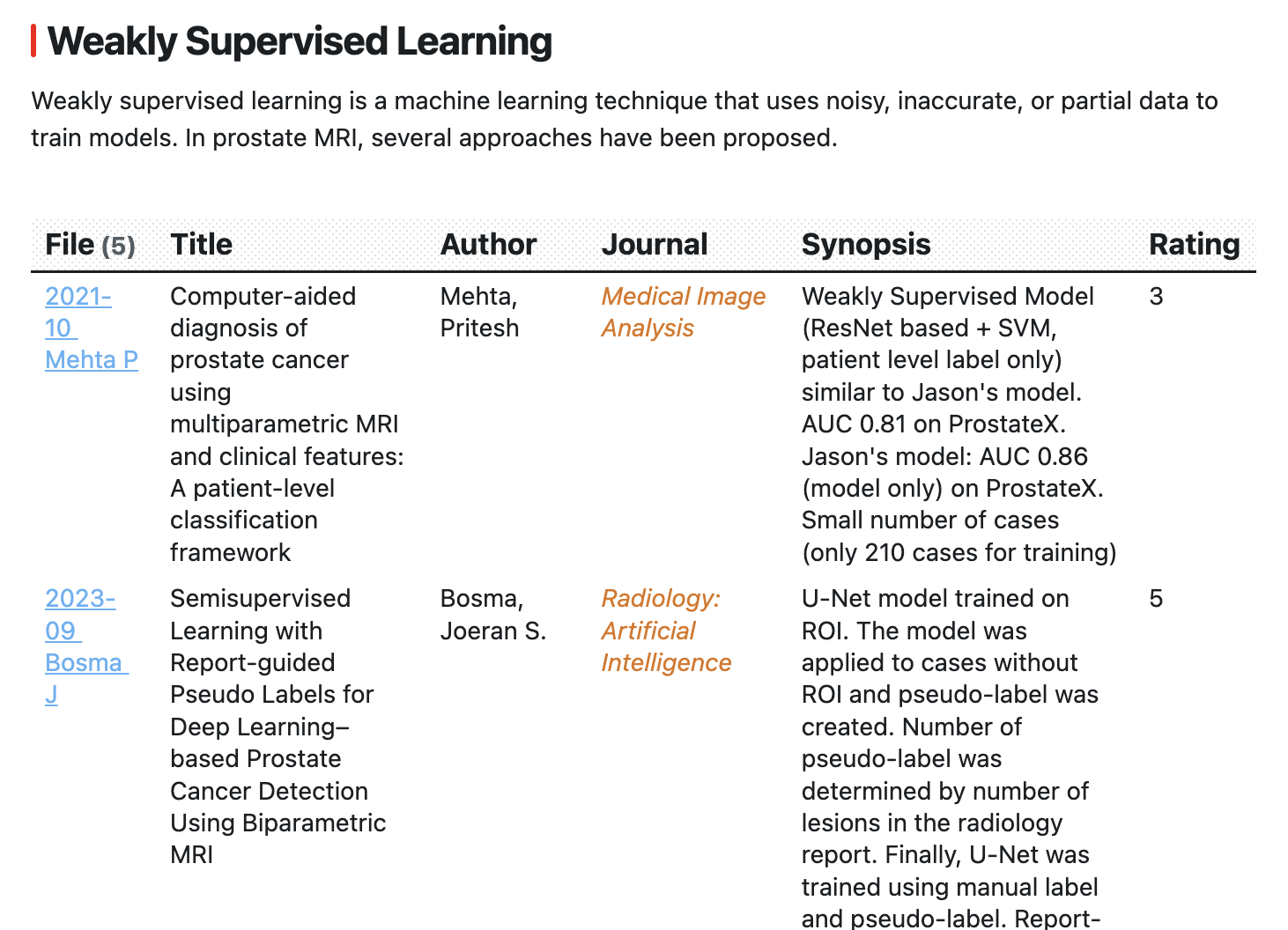
- Filter literature notes and display them in a table.
The screenshot shows literature notes filtered by the tags "ProstateCancer", "MRI", "DL", and "WeaklySupervisedLearning", displayed in a table and sorted by publication year and month. This makes it easier to review research trends and relationships among papers. The table is embedded in a Markdown note, so I can write my own notes before and after it. Each row also links to the corresponding literature note. The displayed fields are customizable; for example, Synopsis and Rating reflect information that I add to each literature note.
I currently use both Obsidian's built-in Bases and Dataview for literature lists. I explain how I divide their roles later in this article.
Zotero setup
For downloading Zotero, basic setup, importing PDFs, and adding annotations, see this article for details. Here I cover only the settings needed to connect Zotero and Obsidian.
Installing ZotLit Companion
To connect Zotero with ZotLit in Obsidian, install ZotLit Companion in Zotero. Download the .xpi file from the ZotLit Companion distribution page.
Open Tools → Plugins in Zotero and use the gear icon in the upper-right to choose Install Plugin From File... . Select the downloaded .xpi file to install ZotLit Companion.
Installing Better BibTeX
Because I use a citation key for each reference, I also install
Better BibTeX
. For example, I use citation keys such as
Deng_2024
and store them in Obsidian Properties as well.
Better BibTeX is not required for the ZotLit connection itself, but it is useful if you use citation keys.
Managing tags
I mainly assign literature tags in Zotero. ZotLit can automatically import those tags into Obsidian Properties. Zotero permits spaces in tags, but I recommend avoiding spaces—for example by using CamelCase—so the same tag names are easy to use in both Zotero and Obsidian.
As the number of tags grows, I also use nested tags , for example ML/DL and ML/Radiomics. They keep related tags organized and are convenient for searching and filtering literature in Obsidian Bases.
Downloading Obsidian
Download Obsidian from the website .
My environment and versions
My current environment is:
- Mac: Tahoe 26.6.2, Obsidian: 1.13.7, Zotero: 10.0.1
- Windows: Windows 11, Obsidian: 1.13.7, Zotero: 10.0.1
Even when the Obsidian app itself is current, the installer version can be old. If ZotLit does not work correctly, check the Obsidian installer version and, if necessary, download and install the latest installer from the Obsidian website.
Create an Obsidian vault and prepare folders like the following:
Vault
  ├── Project 1
  ├── Literature          (literature notes)
  ├── Templates           (templates)
  └── Attachments         (images)
Obsidian setup and plugin installation
I use the following three plugins/features:
- ZotLit
- Dataview
- Bases(Core Plugin)
Open Obsidian Settings from the gear icon. Enable Community Plugins, then search for and install ZotLit and Dataview from Browse.
Bases is a Core Plugin, so no separate installation is required; simply enable it under Core Plugins.
ZotLit connects Zotero and Obsidian and is used to create and update literature notes.
Dataview and Bases use Properties and tags to search and display multiple literature notes. I currently use both and explain their different roles later.
ZotLit setup
After installing and enabling ZotLit, a ZotLit section appears in Obsidian Settings. From there, you can configure the Zotero connection, the storage locations for literature notes and images, Properties, and templates.
ZotLit configuration has two main parts. Basic settings such as the Zotero connection, storage locations, and Properties are configured under Settings → Community plugins → ZotLit . File naming, note structure, and annotation formatting are configured by editing the template files created by ZotLit. I first configure Settings and then edit the template files.
Settings configured in ZotLit
First open Settings → Community plugins → ZotLit and configure the Zotero database, note and image locations, and Properties.
Zotero database
ZotLit reads metadata, tags, and annotations from Zotero's database (
zotero.sqlite
). The database location is normally resolved automatically from your Zotero profile, so confirm that the correct
zotero.sqlite
path is shown.
The Zotero database location differs between Windows and macOS, but ZotLit normally resolves it automatically on each computer, so manual path entry is usually unnecessary.
Literature note folder
Set the literature-note folder to
Literature
. New ZotLit literature notes are saved directly in this folder.
Attachments → Attachment folder
Set the folder for image annotations imported from PDFs to
Attachments
. If this field is blank, an image link may be created without the image file being saved correctly.
Templates → Template folder
Set the template-file folder to
Templates
. ZotLit creates template files here for configuring filenames, note structure, and annotation display.
Configuring Properties (frontmatter)
Templates → Frontmatter
Here you choose which Zotero metadata fields are stored as Obsidian Properties. Each entry has a Property name, Language, Expression, and Merge strategy. For all fields below, Language is
Liquid
.
Expression specifies which Zotero metadata value is imported. Merge strategy controls how that value is applied to an existing Property. Replace replaces the existing value with the Zotero value; Append arrays preserves an existing array and appends new values; Keep existing keeps the existing value.
| Property | Expression | Merge strategy |
|---|---|---|
| category | "LiteratureNote" |
Keep existing |
| title | zt.title |
Replace |
| Journal | zt.publicationTitle |
Replace |
| FirstAuthor | zt.creators[0].given | slice: 0, 1 | prepend: " " | prepend: zt.creators[0].family |
Replace |
| Year | zt.date | date: "%Y-%m-%d" |
Replace |
| doi | zt.DOI |
Replace |
| zotero-link | zt.backlink |
Replace |
| citekey | zt.citationKey |
Replace |
| tags | zt.tags | obsidian_tag |
Append arrays |
tags
uses the
Append arrays
merge strategy because I sometimes add tags in Obsidian after importing Zotero tags. This preserves Obsidian-added tags when the literature note is updated. The
obsidian_tag
filter converts Zotero tags into a format usable by Obsidian.
The Zotero link opens the corresponding Zotero item, which is convenient for reading the PDF or adding annotations. ZotLit also automatically adds a
zotero-key
Property. ZotLit uses it to associate the Obsidian literature note with the Zotero item; it cannot be changed in the Frontmatter settings.
Configuring template files
The
Templates
folder contains several .md template files created by ZotLit.
ZotLit separates filename generation, the basic note structure, the ZotLit-managed content, and PDF annotation formatting into different templates. I edit the following four files. You can paste the code shown below directly into the corresponding .md files.
zotlit-filename.liquid.md
Defines the literature-note filename.
{{ zt.date | date: "%Y-%m" }} {{ zt.creators[0].family }} {{ zt.creators[0].given | slice: 0, 1 }}{% suffix %}
zotlit-note.liquid.md
Defines the basic structure of a newly created literature note.
{% raw %}{% if zt.publicationTitle %}*{{ zt.publicationTitle }}*
{% endif %}{{ zt.title }}
# Summary
> [!note] My note
> Synopsis::
# Methods
# Results
{% render "content" with zt as zt %}{% endraw %}
zotlit-content.liquid.md
Defines the ZotLit-managed region.
{% raw %}{% if zt.abstractNote %}
## Abstract
{{ zt.abstractNote }}
{% endif %}
## Metadata
**Authors**:: {% for creator in zt.creators %}{% if creator.role == "author" %}{{ creator.family }}, {{ creator.given }}{% unless forloop.last %}; {% endunless %}{% endif %}{% endfor %}
{% if zt.annotations.size > 0 %}
## Annotations
{% for annotation in zt.annotations %}
{% render "annotation" with annotation as zt %}
{% endfor %}
{% endif %}{% endraw %}
zotlit-annotation.liquid.md
Defines how Zotero PDF annotations are displayed.
{% raw %}{{ zt.imgLink | embed }}{{ zt.text }}
{% if zt.comment %}
{{ zt.comment }}
{% endif %}{% endraw %}
With this setup, Summary, Methods, and Results are user-edited sections, while Abstract, Metadata, and Annotations are placed in ZotLit's managed region.
After adding new annotations in Zotero, running the update described below refreshes only the managed region. Your own content in Summary, Methods, and Results remains unchanged.
The
{% raw %}{% suffix %}{% endraw %}
tag in the filename template automatically adds a suffix when the same filename already exists, preventing an existing literature note from being overwritten.
Using ZotLit
Now that ZotLit is configured, create a literature note and check the result.
Different commands are used to create a new literature note and to update an existing one.
Before importing a literature note, prepare a Zotero item with PDF annotations. For testing, include an image annotation and a few tags. Unlike the previous workflow, ZotLit does not require you to create a separate Annotation Note in Zotero.
To create a literature note:
- Open the Command Palette (Command/Ctrl-P), type ZotLit, and select “Open literature note quick switcher.”
- Search by author or other terms and select the reference.
Confirm that the literature note has been saved in Obsidian's Literature folder.
If the literature note already exists and you have added annotations or made other Zotero-side changes:
- Open the Command Palette (Command/Ctrl-P), type ZotLit, and select “Update literature note.”
- Search by author or other terms and select the reference.
Anatomy of a literature note created with ZotLit
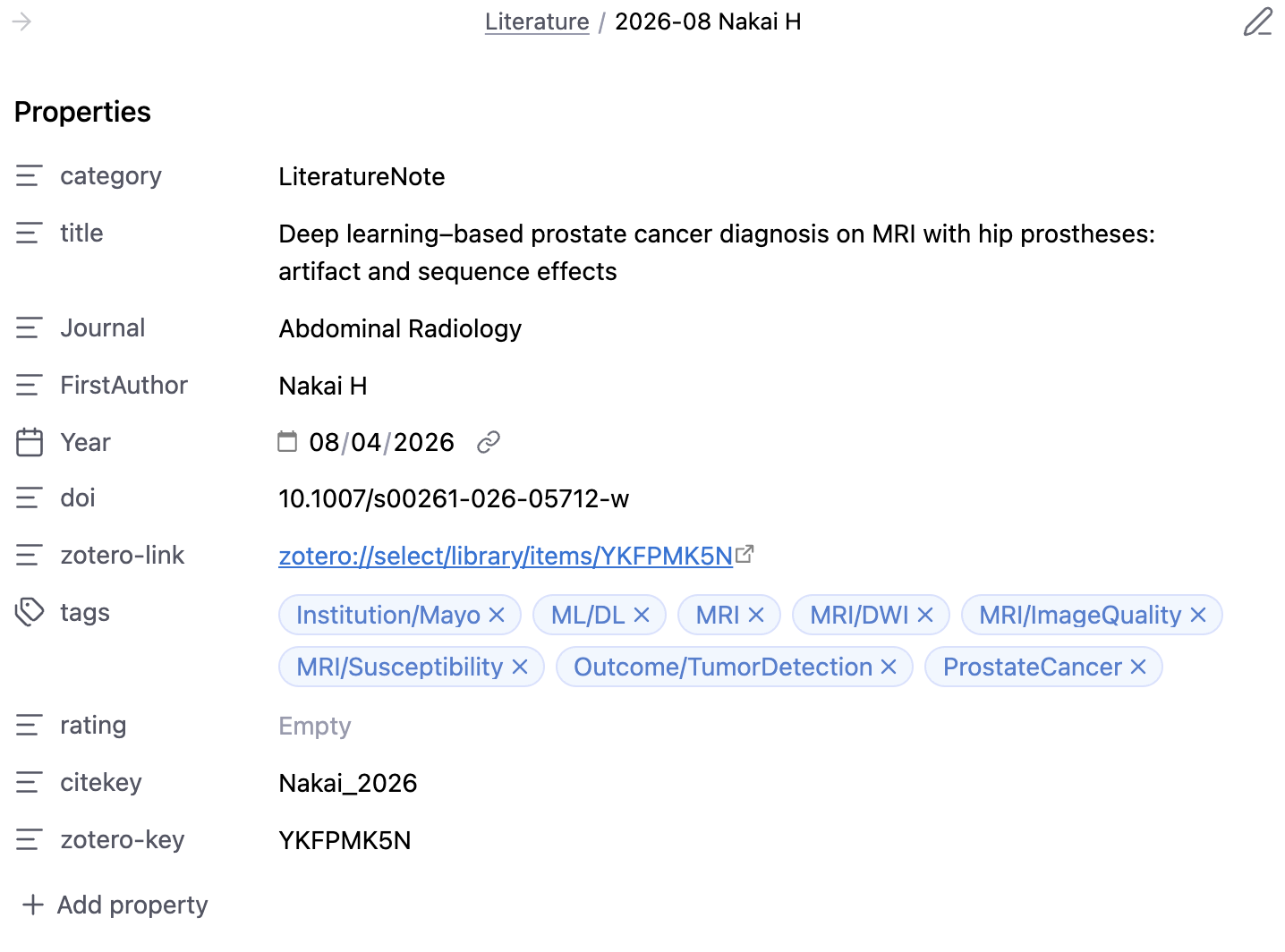
A ZotLit literature note begins with Properties containing the title, first author, publication date, journal or conference name, DOI, citation key, Zotero link, and tags imported from Zotero. I use rating to record my own assessment of a paper's importance.
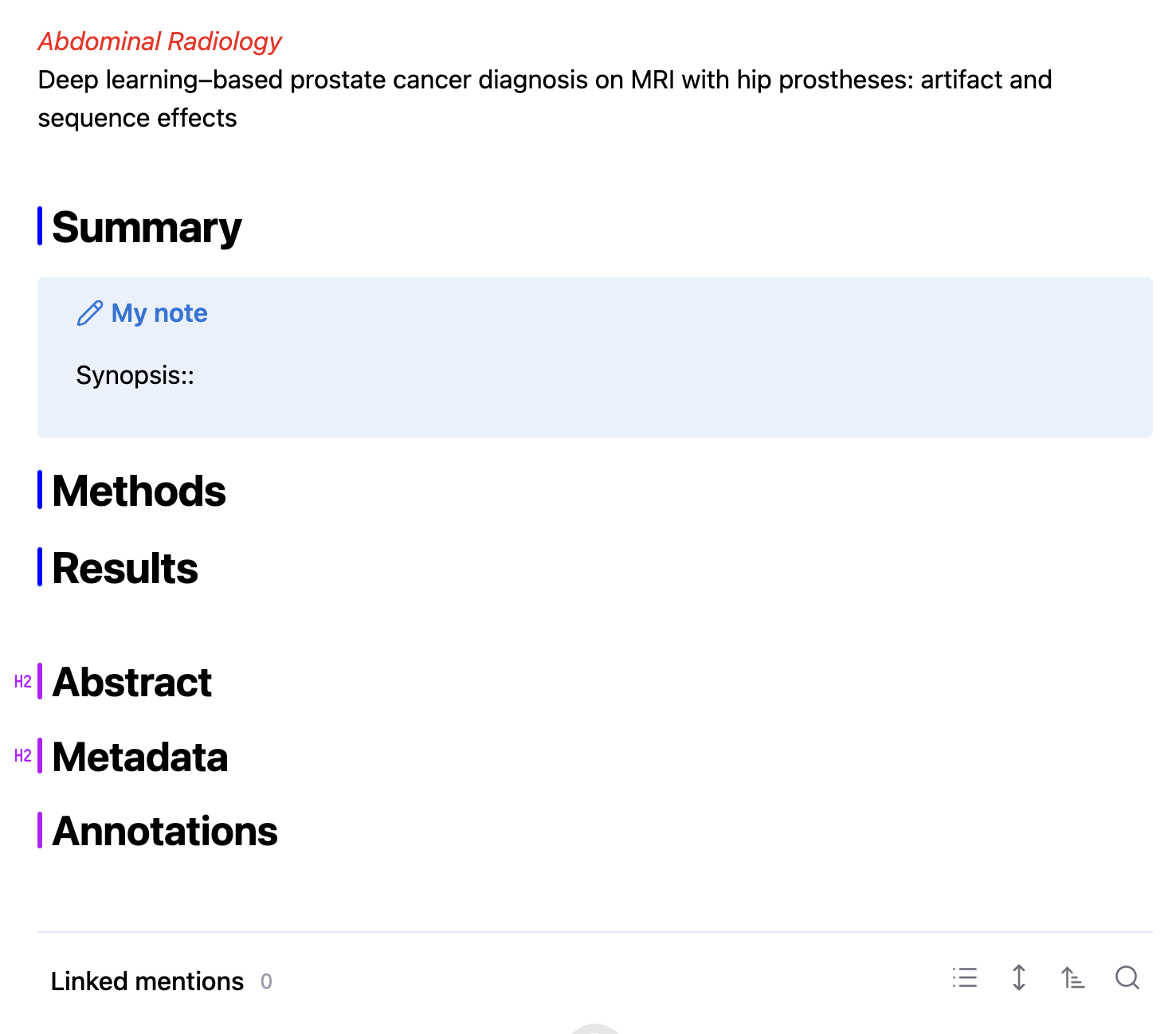
Below Properties, I display the journal/conference name and paper title. Summary, Methods, and Results are my own editable sections. I copy useful material from Annotations into these sections and reorganize it in Markdown.
Summary, Methods, and Results are user-edited sections. Because raw PDF annotations are difficult to read as-is, I copy the useful parts from Annotations and organize them in Markdown. Synopsis is an even shorter, usually several-line summary that I display later in Dataview tables.
Everything from Abstract downward is in ZotLit's managed region. Updating the literature note refreshes this region only; your own Summary, Methods, and Results are left unchanged.
In Metadata, I keep only the complete author list so that author names remain searchable.
Annotations contains text highlights and image annotations imported directly from the Zotero PDF.

Using Dataview
Create a new Markdown note (for example, literature_review_prostateMR.md in Project1) and paste the following query.
```dataview
TABLE
title as Title,
FirstAuthor as Author,
Journal,
Synopsis,
rating as Rating
From "Literature"
AND #tag1
AND #tag2
SORT file.name ASC
```
Replace "tag1" and "tag2" with the tags you want to use as search criteria.
The Dataview query works as follows:
- TABLE displays the result as a table (LIST is also available).
- title, FirstAuthor, etc. are the fields shown as columns; “as Author” changes the displayed column name for FirstAuthor.
- FROM selects folders or tags; AND, OR, and parentheses can be used.
- WHERE can filter on fields such as frontmatter values, for example WHERE contains(rating, "3").
- SORT file.name ASC sorts by filename.
Changes from Zotero 8 + Zotero Integration
I previously used Zotero 8 + Zotero Integration. Moving to Zotero 10 + ZotLit changed several parts of how literature notes are created and updated.
| Previous workflow | Current workflow |
|---|---|
| Zotero Integration | ZotLit |
| Create an Annotation Note in Zotero | Import PDF annotations directly |
| Save first to Literature/Inbox | Save directly to Literature |
| Use Inbox to avoid overwriting duplicate filenames | {% raw %}{% suffix %}{% endraw %} automatically prevents collisions |
| Re-import after adding annotations | Update literature note |
| Store metadata as Dataview fields in the note body | Store metadata as Properties |
| Primarily Dataview | Bases + Dataview |
Dataview vs. Bases
For listing multiple literature notes in Obsidian, I currently use both Dataview and Bases . Bases is a built-in Core Plugin and provides a relatively simple GUI for filtering and sorting notes by Properties. Dataview is a Community Plugin, but direct queries allow more complex searches and displays.
Because most metadata in new literature notes is stored in Properties, Bases is often sufficient for simple literature lists and tag filtering. For example, I use a Base that shows recently added papers so I can quickly review new imports.
```base
filters:
  and:
    - file.inFolder("Literature")
    - category == "LiteratureNote"
views:
  - type: table
    name: Recent
    order:
      - file.name
      - Journal
      - tags
      - rating
    sort:
      - property: Journal
        direction: ASC
      - property: file.ctime
        direction: DESC
    limit: 10
```
A major advantage of Bases is that you can edit Properties directly from the table—for example, changing Rating or tags while viewing the list. Dataview tables are primarily for display, so values are normally edited by opening the source Markdown note.
I still use Dataview, mainly because I keep
Synopsis::
inside Summary rather than in Properties. Synopsis is a short summary I write after reading a paper, not merely database metadata, so keeping it in Summary feels more natural. Dataview can display this kind of inline field directly, whereas Bases cannot directly use inline fields.
Dataview table rows also expand according to content length, so longer Synopsis text can be displayed in full. Bases uses a fixed row height, so long content may be truncated. For literature-review notes where I want to read Synopsis entries in a list, Dataview is currently more convenient.
For now, I therefore use Bases for Property-centered literature lists and editing, and Dataview for literature reviews containing Synopsis and for more complex queries .
Conclusion
Connecting Zotero and Obsidian creates a workflow in which I read papers in Zotero and organize information across papers in Obsidian. Moving to ZotLit lets me import Zotero annotations directly and update literature notes without overwriting my own Summary, Methods, and Results.
Storing literature metadata as Properties also makes Obsidian's built-in Bases useful for literature management. I currently use Dataview and Bases together and expect to keep refining the workflow as I use it.
Last updated: September 10, 2026